2021/02/20

GRUB 2 configuration

I've recently found time and need to improve my GRUB 2 setup and I hope sharing that could help somebody, although it is not something you won't find in other HOWTOs. 

I'm quite conservative and not spending in boot screen much time so all I use is text mode

First of all, the location of onfig files. All the configuration settings are in /etc/default/grub. The settings are used as variables when you generate a new GRUB configuration. The settings there are used whe you generate a new GRUB configuration /boot/grub/grub.cfg with grub-mkconfig command and are all you usually need to change.

If you need to put some custom logic to the generation for the config file, you can achieve that by adding a script into /etc/grub.d directory.

disabling framebuffer

Wher you try to avoid problems with a proprietary driver or just like text mode:

GRUB_TERMINAL_OUTPUT=console


Some information about current framebuffer setup can be found by:
hwinfo | grep -i framebuffer

menu timeout

Setting menu-style timeout, with 5sec countdown:
GRUB_TIMEOUT=5
GRUB_TIMEOUT_STYLE=menu

menu font


GRUB allows to set a custom font. You can create a new GRUB font by converting an existing font with grub-mkfont utility. AFAIK at least TTF and PCF font formats are supported.  

Example of using converted Terminus font in bold weight and 16pt size: GRUB_FONT=/usr/share/grub/terminus16b.pf2

Note that this font is a bitmap one so I had to just chose the proper size and coverte it, when converting TTF fonts you need also provide the desired size.

menu colors

The palette for text-mode colors is quite limited, valid color names are: black, blue, brown, cyan, dark-gray, green, light-cyan, light-blue, light-green, light-gray, light-magenta, light-red, magenta, red, white, yellow.

There are two config options, for setting normal and highlight colors, in format foreground/background: GRUB_COLOR_NORMAL=white/blue GRUB_COLOR_HIGHLIGHT=yellow/light-blue

As it seems these settings are ignored, I created  file /etc/grub.d/99_set_colors with following content to fix that. It's rather simplistic as it does now allow any spaced or quotes around the color values but it does the job:

#!/bin/sh


color_normal=`grep "^GRUB_COLOR_NORMAL" /etc/default/grub | cut -d "=" -f2`

color_highlight=`grep "^GRUB_COLOR_HIGHLIGHT" /etc/default/grub | cut -d "=" -f2`


cat <<EOF

set color_normal=${color_normal}

set color_highlight=${color_highlight}

set menu_color_normal=${color_normal}

set menu_color_highlight=${color_highlight}

EOF

recalling previously selected menu entry


GRUB can save the menu entry you selected last time and use it as default for the next boot:

GRUB_DEFAULT=saved

GRUB_SAVEDEFAULT=true

play tune


If you do not like the waiting for the moment when the GRUB menu is shows up, you can set a tune that will be played just the moment before it appears.


Example with the greeting from the film Close Encounters of The Third Kind: GRUB_INIT_TUNE="480 900 2 1000 2 800 2 400 2 600 3"


You canl find other well-known tunes on internet, e.g. in Linuxmint forum .


2020/06/25

Continuous Versioning with Git and Gradle

Semantic Versaioning

Everybody knows semantic versioning. I think it's still good for software sold in boxes, regardless if the real paper ones or as downloads. But for continuous deployment it does not seem to be good enough.

Looking at the semantic version number does not tell you much. It is barely more than "hey, something was changed and the change is/maybe/should-not be disturbing". Not mentioning that the developers tend to forget to change the version number. And even when they do, it is unnecessarily  difficult to find what exact changes, i.e. commits, are in the semantically versioned release.

Continuous Versioning

Here comes what I call continuous versioning. It's more principle than exact versioning pattern, although I am going to suggest this one:

${semantic_version}-${commit_timestamp}-${commit_id}.

As you see the semantic version is still there, mainly because people like to see something familiar when you change things :). The main point is to add information about the last commit the change release contains.  The commit timestamp is there to give the version numbers nice chronological ordering. For developers is the most useful the last part - id of the commit, for which we use short hash of Git commit.

As you see there is no big demand for developers to increment the semantic version - it's nice if they do that, but each artifact still gets unique version number if they do not. What's even better, all the information can be gathered during build and used for various artifacts the build can produce - nowadays often executable package and Docker image.

The example how to achieve the described versioning with Gradle and use it to tag a Docker image artifact is below. To get information from Git we use both com.palantir.git-version Gradle plugin and Git command line, because the plugin does not provide timestamp info.

plugins {
    id 'com.palantir.git-version' version '0.12.3'
    id 'com.bmuschko.docker-remote-api' version '6.1.2'
}

def semanticVersion = '1.0.0'
def gitTimestamp = { ->
    def stdout = new ByteArrayOutputStream()
    exec {
        commandLine 'git', 'show', '-s', '--format=%ct', 'HEAD'
        standardOutput = stdout
    }
    return stdout.toString().trim()
}
def gitVersion = details.gitHash

version = semanticVersion + "-" + gitTimestamp() + "-" + gitVersion

// ...

import com.bmuschko.gradle.docker.tasks.image.DockerBuildImage


task buildDockerImage(type: DockerBuildImage) {
    // custom task to prepare files ind build/docker directory:
    // dependsOn  "prepareFilesForDockerBuild"
    inputDir = file('build/docker')
    images.add("mycooldockerrepo.com/${project.name}:${version}")
}

import com.bmuschko.gradle.docker.tasks.image.DockerPushImage

task pushDockerImage(type: DockerPushImage) {  
    dependsOn "buildDockerImage"

    images.add("mycooldockerrepo.com/${project.name}:${version}")
    
    registryCredentials {
       url = "mycooldockerrepo.com"
       username = System.getenv('docker_user') ?: "${docker_user}"
       password = System.getenv('docker_password') ?: "${docker_password}"
    } 
}

To package the version info inside the Docker image, we can define custom task prepareFilesForDockerBuild and uncomment the dependsOn line of buildDockerImage().
To save the version number into a file, e.g. named docker/version.txt, this should be inside that task:

new File("docker/version.txt").text = "${version}"

I hope this article helps somebody to look at versioning schemes from a newer point of view. I will add Maven version when I have one but my recent projects seem to be Gradle-only, so it coudl take time - feel free to post yours to share.


2020/06/13

Sharing Files From Linux to Windows VM


I have a Linux workstation and created a Windows virtual machine in it, running on KVM+QEMU+libvirt stack. Recently I haveve decided to actually start using this VM and found that to make it comfortable I need some file sharing between the Linux host and Windows guest. Following article describes how to make working, as simple as possible settup to achieve it.

My configuration is Gentoo Linux as the host and Windows 10 a the guest. It should work similarly on any other recent Linux and also on Windows 7. For managing of the VMs I'm using both commandline (mostly virsh and qemu-img) and  Virtual Machine Manager.  

I expect the libvirt and nfs daemons are already running on your machine and you are familiar with basic usage of these tools.

I hope the description bellow will help somebody to save some time. Just don't ask me about systemd setup, I don't use it.  

First of all what approaches I considered and rejected:

  • Plan 9 file sharing protocol - there is no support on Windows side for that
  • Samba - would work but I wanted something simpler

While exploring, what's possible, I found that Windows are able to use NFS and it also seemed as the most simple solution so I decided to give it a try. To my suprise, it really works, although my setup is very simplified. Steps to achieve that in brief:

  • create directory to be shared and export it as NFS volume
  • anable NFS support in Windows and mount the NFS volume

Creating the Directory and Export It

The location of the directory is quite flexible but should be accessible by the account that will be used for the sharing -- I decided to use good old nobody:

>id nobody
uid=65534(nobody) gid=65534(nobody) groups=65534(nobody)

Create the directory and set the ownership:

>mkdir /mnt/diskx/nfsshare
>sudo chown nobody:nobody /mnt/diskx/nfsshare

Let's expect IP address of Windows VM is 192.168.11.11. You can find the real value for your VM  in Virtual Machine manager when you got to Details and look at NIC settings.  For easier manipulation we give it a name by new record in /etc/hosts:

192.168.11.11 windowsvm

Now we need to export the directory via NFS by adding following line to /etc/exports:

/mnt/disk3/nfsshare/    windowsvm(rw,all_squash,anonuid=65534,anongid=65534)

It will map all the userd ids to our nobody user.

To make the change active, it should be followed by either restarting of the NFS daemon or by executing 'exportfs -ra'.

Mounting the NFS Volume in Windows

Start the Windows VM. To add support for NFS, we must go to "Turn Windows Features on or off" and enable "Services for NFS".


After that we need to use the same anonymous UID and GID as set on server side. For that open regedit, find "Computer\HKEY_LOCAL_MACHINE\SOFTWARE\Microsoft\ClientForNFS\CurrentVersion\Default" and add there two DWORD values named AnonymousUid and AnonymousGid with the same value as used in /etc/exports.


With the IP address of the Linux host set to 10.10.11.11 we can now execute the following command in command.com shell: 

mount -o anon \\10.10.11.11\mnt\diskx\nfsshare Z:

After that the NFS volume should appear as Windows volume "Z:" and we should be able both to read and write to it.

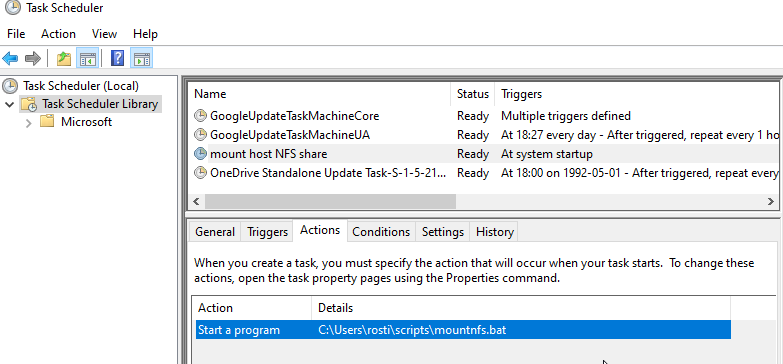
Save the command to a file called mounntfs.bat and keep it for future use. I have it in my home folder in sub-folder named scripts.

Mounting It Automatically on Startup

To avoid the necessity to execute the script manually each time you start the VM, you can use Windows Scheduler and create and a scheduled task for that. The desired task in my cas uses SYSTEM account, triggers at startup whenever a network connection is available.


2016/05/02

Preparing Virtual Machine for Virsh Shutdown

One of the a bit tricky things with libvirt is to make guest OS support shutdown command directly, i.e. when you call virsh shutdown ${machine_name} the virtual machine shuts down gracefully and without any delay. 

Libvirt sends the an ACPI (see acpi.info for details)event to virtual machine when shutdown command is issued. Although delivering of ACPI events can be disabled in libvirt configuration, often the problem is that default settings of the most operating systems ignores the events or requires user interaction during their processing. That is undesired behavior for headless automated virtual machines -- below is how to configure some of the currently used operating systems to correctly shutdown when they receive the proper ACPI event. 

note: I intend to update this article when I get experience with any other operating system setup. Feel free to send me yous hands-on as comments.


Ubuntu


  1. install acpid : apt-get install acpid
  2. start it : service acpid start
  3. Add it to default run level:  update-rc.d acpid enable
  4. disable confirmation dialogs by editing /etc/acpi/events/powerbtn
    1. add # to comment line: #action=/etc/acpi/powerbtn.sh
    2. add a new line: action=/sbin/poweroff


Windows Server


  1. change policies
    1. open the Group Policy Editor: gpedit.msc
    2. allow shutdown when an administrator is not logged in
      1. navigate to Local Computer Policy -> Computer Configuration -> Windows Settings -> Security Settings -> Local Policies -> Security Options
      2. find option: “Shutdown: Allow system to be shut down without having to log on” and set it to “Enabled”
    3. disable the “Shutdown Event Tracker” (the dialog that will be presented to the user when a shutdown is requested)
      1. navigate to Local Computer Policy -> Computer Configuration -> Administrative Templates -> System
      2. find option “Display Shutdown Event Tracker” and set it to “Disabled”
  2. set power button to shutdown
    1. open Control Panel
    2. select Power Options
    3. left pane select “Change what the power buttons do” and set it to “shutdown”
  3. disable monitor sleep
    1. open Control Panel
    2. select Power Options, select "Change power-saving settings"
    3. select “High performance”
    4. click on “Change plan settings” and disable monitor sleep by setting "Turn off display" option to 'Never"

2016/04/29

Getting IP Address of a Virtual Machine


When assigning IP addresses to a virtual machine, aka domain, you have two options -- either to assign a fixed IP to the machine or use DHCP for providing an IP address from a predefined range.

In environment in which you need to dynamically create groups of cooperating virtual machines the approach with fixed IP address is not feasible as it uses the network address range inefficiently and/or requires careful IP address management. 

We needed the DHCP way. The problem is how to get the IP address for a virtual machine when all you have is only the machine's name.

There are two ways how to find out most of the information about a virtual machine, including its IP address:
  • with a help from inside -- guest OS needs to have installed kind of hypervisor-specific software, so called guest agent, mediating communication of the host with the guest
  • from outside -- gathering the desired information relies on standard tools of host OS and network connectivity


Virtualbox - Guest Additions


The IP address of the virtual machine can by retrieved from the machine properties with a single command vboxmanage guestproperty enumerate ${machine_name}. The information about guest network is available in guest properties only when the guest has installed Guest Additions, which limits the list of guest operating systems to Linux, Windows and Solaris.

To extract just the IP in bash or similar UNIX shell run:
vboxmanage guestproperty enumerate ${machine_name} | grep IP | cut -d " " -f 4 | cut -d "," -f 1

Libvirt - QEMU Guest Agent


Also QEMU has Guest Agent, supporting Linux and Windows guests, that can be use to get machine's IP address


No Guest Tools, Just Linux


Second approach relies some basic knowledge about the virtual machine and the network interface it is connected to. Basically you need to know machine's MAC address and name of the NIC. For bridged networking the NIC is likely to be named br0.

Let's suppose the host OS is Linux. Similar approach should work on other operating systems but the tools will differ. 

For the translation if MAC address to IP address I rely on arp-scan.  It scans the whole network or given range if IP addresses and provides the MAC-to-IP mapping. To scan a whole network you can run arp-scan --interface ${bridge_name} -l , for larger networks you should provide IP address range to reduce time and memory footprint:
arp-scan --interface ${brige_name} ${low_ip_limit}-${high_ip_limit} .


So the complete bash script for getting virtual machine's IP address could look like this (for libvirt and br0 NIC):

#!/bin/bash

vm_name=$1
bridge_name="br0"

mac_address=`virsh dumpxml ${vm_name} | grep "mac address" | cut -d "'" -f 2`

arp_scan_record=`arp-scan --interface ${bridge_name} -l | grep $mac_address`

ip_address=`echo -n ${arp_scan_record} | cut -d " " -f 1`

echo -n "${ip_address}"


2015/10/15

Moving TeamCity Build to Remote Agent


As we added more build configuration to our TeamCity server, it was soon too much for the machine hosting it. Having a spare machine we decided to move some build to this new machine to lift the burden from our TeamCity's shoulders.

It was also opportunity to look at TeamCity plugins in general an specifically at so called agent tools.

Pre-requisities

  • fresh installation of the Linux distribution of your choice
  • JDK
  • OpenSSH daemon for remote access  

Agent Push

On the target machine create an account for teamcity, e.g. teamcity - to make the maintenance easier use the same user/group name and id as on the machine hosting TeamCity.

I wanted to use password-based authentication but avoid to disclose root password so I used the same  credentials "push agent" as used for  "run under". It worked up to the "su" point -- see below.

Problem: push fails with "Algorithm negotiation fail"

This is cause by the removal of unsafe algorithms from OpenSSH default configuration. Unfortunately the JSCH library used by TeamCity still tries to use them and is refused.

To make JSCH happy, you can enable weak key-exchage algorithms by adding following line to the /etc/ssh/sshd_config file (diffie-hellman-group1-sha1 stands for 1024 bit DH with SHA1, diffie-hellman-group-exchange-sha1 for custom DH with SHA1):

KexAlgorithms diffie-hellman-group1-sha1, diffie-hellman-group-exchange-sha1

Please enable this line only for the agent push and make sure it is removed after that. It is broken in current TeamCity 9.1.3.

Problem: "su: must be run from a terminal"

The whole error message looks similar to this:

Remote agent installation failed: Command '[./bootstrapper.sh "http://myteamcity:8111" "/home/teamcity/BuildAgent" "some_security_token" "user" "password"]' was executed with error message(s): su: must be run from a terminal.

There are several issues associated with this error and I am not sure what is the proper solution at the time being - addding user teamcity to group sudo did not work.  As I installed only one agent, I "solved" it by logging to the agent machine as the teamcity user, editing name in buildAgent.properties  and executing "agent.sh start".

The last thing to do its to go to the Agents tab in TeamCity, check the agent's status, authorize it if it is not authorized and set compatible configuration so no build is run on the agent until it is really ready.

Agent Tools

TeamCity plugins can have both server and agent side. The agent-side plugins that do not load any classes into the runtime are called agent tools - it is TeamCity way for distribution of binary files to agents.

In your .BuildServer/plugins directory (default value) create directory .tools, if it is not there yet. Each agent plugin then can put either zip file or directory with the tools to distribute to all agents. The distribution starts in about 2 minutes. It is possible that a build configuration asociated with the agent is required to trigger the process.

Create directory .BuildServer/plugins/.tools/my_plugin and put your scripts inside. The files  should be accompanied with plugin descriptor teamcity-plugin.xml . If you do not create it,  an empty one is created on the agent side. The distribution process removes executable bit from all files put into the directory -- to prevent it you have to list your executable in the descriptor under "executable-files":

<?xml version="1.0" encoding="UTF-8"?>
 <teamcity-agent-plugin xmlns:xsi="http://www.w3.org/2001/XMLSchema-instance"
                        xsi:noNamespaceSchemaLocation="urn:schemas-jetbrains-com:teamcity-agent-plugin-v1-xml">
   <tool-deployment>
      <layout>
         <executable-files>
           <include name='path_to_executable'/>
         </executable-files>
      </layout>
   </tool-deployment>
 </teamcity-agent-plugin>

The path is relative to the plugin directorty and you do not have to start it with "./".

Calling Your Agent Tools Script


Create a build step of runner type "Command line" and set working directory of the step to %teamcity.tool.my_plugin% . Then you can execute scripts relative to the plugin directory, .e.g. with "Command executable" set to "./helloWorld.py" .

2015/04/01

Better Looking TestNG Reports with ReportNG

We had a set of system tests using Selenium 2 Webdriver and I was not satisfied with the default TestNG reports. I was  looking for a way to make reports look better and provide all the information necessary for analysis of a test failure when is happens. There were two requirements :
  1. provide nice, compact overview 
  2. include screenshot of a moment of failure
First thing I tried was Allure framework - it creates very nice reports but I had to reject it after some trials because it the way it works it was incompatible with the existing tests and its also quite invasive.

Fortunately I found ReportNG after that. The default design might not be so fancy but it is still very good and it fits well into TestNG and our tests.

First we had to add necessary dependencies to our maven POM:
<dependency>
   <groupId>org.testng</groupId>
   <artifactId>testng</artifactId>
   <version>6.8.8</version>
</dependency>

<dependency>
   <groupId>org.uncommons</groupId>
   <artifactId>reportng</artifactId>
   <version>1.1.4</version>
   <exclusions>
      <exclusion>
         <groupId>org.testng</groupId>
         <artifactId>testng</artifactId>
      </exclusion>
   </exclusions>
</dependency>

<dependency>
   <groupId>com.google.inject</groupId>
   <artifactId>guice</artifactId>
   <version>3.0</version>
</dependency>

TestNG has several interfaces to hook into the test processing, the most interesting probably are ITestListenerIConfigurationListener, and sometimes IMethodInterceptor. ReportNG add class HTMLReporter to that.

To add a screenshot to the report, we need to save it ITestListener.onContextFailure() and pick it up
in a custom ReportNGUtils -- for customization we need to provide custom Velocity context by overriding createContext() and passing custom ReportNGUtils implementation.


import org.apache.commons.io.FileUtils;
import org.apache.velocity.VelocityContext;
import org.openqa.selenium.OutputType;
import org.openqa.selenium.TakesScreenshot;
import org.openqa.selenium.WebDriver;
import org.testng.IConfigurationListener;
import org.testng.ITestContext;
import org.testng.ITestListener;
import org.testng.ITestResult;
import org.uncommons.reportng.HTMLReporter;

import java.io.File;
import java.net.URL;

public class TestListener extends HTMLReporter
       implements ITestListener, IConfigurationListener
{
    protected static final CustomReportNgUtils REPORT_NG_UTILS = new CustomReportNgUtils();

    @Override 
    protected VelocityContext createContext()
    {
        VelocityContext context = super.createContext();

        // VelocityContext has three properties: meta, utils, messages 
        // - see AbstractReporter.createContext()
        context.put("utils", REPORT_NG_UTILS);

        return context;
    }

    /** Invoked when test method (method with annotation @Test) fails. */
    @Override
    public void onTestFailure(ITestResult testResult)
    {
        if (getWebDriver(testResult) != null)
        {
            File scrFile = ((TakesScreenshot) getWebDriver(testResult))
                                             .getScreenshotAs(OutputType.FILE);
            String screenshotName = createScreenshotName(testResult);

            File targetFile = new File(screenshotName);
            FileUtils.copyFile(scrFile, targetFile); 
 
            URL scrUrl = new URL(getDriver(testResult).getCurrentUrl()); 
            Screenshot screenshot = new Screenshot(targetFile, srcUrl );
            testResult.setAttribute(Screenshot.KEY, screenshot);
        }

    }

    // ...
}

Class Screenshot is a custom class holding screenshot-related data, bare bones version could looke as this:

class Screenshot
{
    /* Name of {@link ITestResult} attribute for Screenshot. */
    static final String KEY = "screenshot";

    /** File in which is the screenshot stored. */
    File file;

    /** URL of a web application's page the screenshot captures. */
    URL url;
}

Now we need to add the custom ReportNGUtils implementation which picks up contextual information (Screenshot instance in our case) and uses it to modify the report output.

import java.util.List;

import org.testng.ITestResult;
import org.uncommons.reportng.ReportNGUtils;

class CustomReportNgUtils extends ReportNGUtils
{
    public List<String> getTestOutput(ITestResult testResult)
    {
        List<String> output = super.getTestOutput(testResult);

        if ( testResult.getAttribute(Screenshot.KEY) != null )
        {
            Screenshot screenshot = (Screenshot) testResult.getAttribute(Screenshot.KEY);
            String screenshotFileName = screenshot.getFile().getName();

            if (screenshot != null)
            {
                String url = (String) testResult.getAttribute("screenshotUrl");
                output.add(String.format("screenshot for %s  %s <br/><img src='../screenshots/%s'>",
                                         testResult.getName(), url, screenshotFileName)
                );
            }
        }

        return output;
    }
}

The final step is to register test listener in the plugin executing the tests. We use failsafe, the configuration for surefire is similar if you desire to use it.

<build>
        <plugins>

            <plugin>
                <groupId>org.apache.maven.plugins</groupId>
                <artifactId>maven-failsafe-plugin</artifactId>

                <configuration>

                    <systemPropertyVariables>
                        <org.uncommons.reportng.escape-output> 
                        false 
                        </org.uncommons.reportng.escape-output>
                    </systemPropertyVariables>
                    <summaryFile>${project.build.directory}/failsafe-reports/failsafe-summary.xml</summaryFile>
                    <testClassesDirectory>${project.build.directory}/classes</testClassesDirectory> 
                    <properties>
                        <property>
                            <name>usedefaultlisteners</name>
                            <value>false</value>
                        </property>
                        <property>
                            <name>listener</name>
                            <value>
                                org.bithill.test.testng.TestListener
                            </value>
                        </property>
                    </properties>

                    <suiteXmlFiles>
                        <suiteXmlFile>src/main/resources/suiteX.xml</suiteXmlFile>
                    </suiteXmlFiles>

                </configuration>

                <executions>

                    <execution>
                        <id>integration-test</id> 
                        <phase>integration-test</phase>
                        <goals> <goal>integration-test</goal> </goals>
                    </execution>

                    <execution>
                        <id>verify</id> 
                        <phase>verify</phase>
                        <goals> <goal>verify</goal> </goals>
                    </execution>

                </executions>
            </plugin>

        </plugins>
    </build> 
 
And that's all - when you run 'mvn failsafe:integration-test' the tests are run, then you follow with 'mvn failsafe:verify',  which processes the results of the integration tests and generates a report and sets proper build result. Note that set the testClassesDirectory si crucial if you have it different than the expected 'test-classes'.